Stuffolio Quick Start Guide
Your Personal Product Manager
Press / to search, Esc to close
What is Stuffolio?
Stuffolio helps you track everything you own — warranties, purchase dates, manuals, and more. Never lose track of when a warranty expires or where you put that receipt again.
Getting Started (5 Minutes)
Step 1: Add Your First Product
- Open Stuffolio
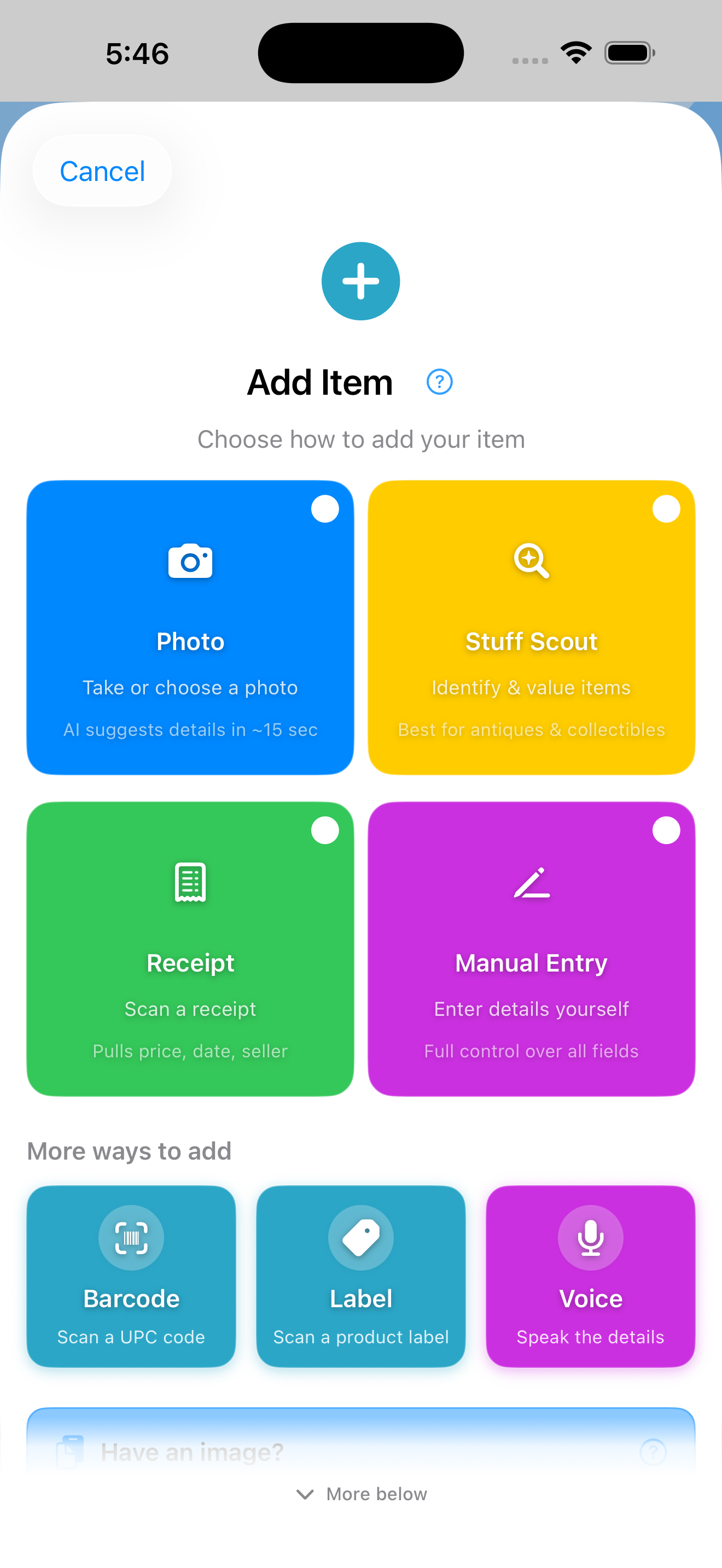
- Tap the + button (bottom right on iPhone, toolbar on iPad/Mac). On first launch, the chooser is already embedded on your home screen — no extra tap needed.
- Pick how to add. Four primary tiles:
- Photo — Snap a photo and AI fills in the details (subscribers get automatic analysis)
- Stuff Scout — Full AI analysis with pricing and history
- Receipt — OCR extracts store, date, and price from a receipt photo
- Manual Entry — Type the details yourself
- Or use one of three "More ways to add":
- Barcode — Scan a UPC for product lookup
- Label — Photo of a nameplate; extract brand, model, and serial
- Voice — "Add coffee maker to kitchen, manufacturer Cuisinart, price 99 dollars"
- Or use the Paste/Drop accelerator at the bottom of the chooser:
- Paste — From clipboard; iPhone, iPad, and Mac
- Drop — Drag an image into the drop zone; iOS only for now
- Enter the Product Name (required)
- Add optional details:
- Manufacturer — Who made it
- Model Number — Found on product label
- Serial Number — For warranty claims
- Acquisition Type — How you got it: Purchased, Inherited, Gifted, or Found (the form adapts based on your choice)
- Purchase Date — When you bought it (use "Approximate" if unsure)
- Purchase Price or Current Value — What you paid or what it's worth today
- Additional Costs — Shipping, taxes, accessories (Stuffolio tracks your total investment)
- Warranty Expiration — When coverage ends
- Tap Save
Step 2: Organize with Categories
Stuffolio includes 20+ categories to organize your products:
| Category | Examples |
|---|---|
| Electronics | TV, laptop, phone |
| Appliances | Refrigerator, washer, microwave |
| Furniture | Sofa, desk, bed frame |
| Tools | Drill, saw, lawn mower |
| Automotive | Car accessories, bike |
| Sports | Gym equipment, golf clubs |
Step 3: Check Your Dashboard
The Dashboard shows at-a-glance:
- Expiring Soon — Warranties ending in the next 30 days
- Needs Attention — Products missing key info or overdue for maintenance
- Recently Added — Your latest additions
- Quick Stats — Total products, total value, purchase costs
Key Features
My Products
Browse, search, and filter all your products. Tap any product to view details, edit, or access AI assistance.
Smart Scanner
Scan barcodes to auto-fill product information:
- Go to Actions > Smart Scanner
- Point camera at UPC barcode
- Review auto-detected product info
- Save to your inventory
Stuff Scout (AI Identification)
Identify antiques, collectibles, and unknown items:
- Go to Actions > Stuff Scout
- Take a photo of the item
- (Optional) Expand "What do you know about this item?" and type any details you already have — provenance, marks, dates. Up-front context lifts first-pass accuracy.
- AI analyzes and provides identification, era, maker, and estimated value
- If the results aren't quite right, tap Not quite right? to provide hints and re-analyze
- Results automatically save to Recent Scans — view anytime in Scout History
Photo Quick Add ("Snap & Done")
The fastest way to add items — let AI do the typing:
- Tap the + button, then tap Photo in the chooser's primary tier
- Choose photo type:
- Product — photo of the item itself
- Nameplate/Label — close-up of brand/model/serial info
- Receipt — purchase receipt with date, store, price
- Packaging — box with product details
- Snap the photo (or choose from library)
- AI analyzes and auto-fills form fields
- Review, edit if needed, tap Save
Voice Input
Add items hands-free with natural language. Works in both Add and Edit forms:
- Pick how to start Voice entry:
- Tap Voice in the Add Item chooser (recommended for new items)
- Or tap the mic button next to Product Name in any Add or Edit form
- First time: A tip sheet shows example commands — tap Try It to continue
- Grant permissions (first time only)
- Speak naturally: "Add coffee maker to kitchen, manufacturer Cuisinart, price 99 dollars"
- Review parsed fields in the preview
- Tap Use This Input to fill the form
Recognized: Title, room, manufacturer, price, model number, serial number, and category keywords.
Rate AI Responses
After using AI features (Stuff Scout, Product Assistant, Quick Add), you'll see thumbs up/down buttons:
- Thumbs Up — Response was helpful, accurate, or useful
- Thumbs Down — Response was off-target, wrong, or confusing
- Skip — Don't want to rate? Just close and move on
Your feedback helps improve AI accuracy for everyone. Ratings are anonymous and optional.
Scout Refinement (Re-Analyze Existing Items)
Already have an item in your inventory? Re-analyze it with Stuff Scout:
- Open the item and tap Edit
- Expand the Stuff Scout section
- Tap Analyze with Stuff Scout
- Scout analyzes the item's photos and shows a comparison
- Review current values vs. Scout's findings side-by-side
- Check boxes for fields you want to update
- Tap Apply Selected to update your item
Receipt Pairing
Combine product identification with purchase details in one flow:
- After Stuff Scout identifies your product, tap Add to Inventory
- In the preview sheet, tap Add Receipt Photo
- Capture or select a photo of your receipt
- Store name, date, and price auto-fill from the receipt
- Review and save — complete record with no manual typing
AI Product Assistant
Get instant help for any product:
- Open a product's detail view
- Tap AI Assistant
- Choose from: Find Manual, Find Warranty Info, Find Parts, Troubleshoot Problems, Maintenance Tips, How-To Videos
Troubleshoot has a symptom field. When you tap Troubleshoot, an optional text box appears ("Describe what's happening"). Type a sentence about what you're seeing, or skip it. The assistant restates your words, lists common failure modes for that product, and points at the manufacturer's troubleshooting guide. It is not a diagnosis.
Offline Access: All AI responses are cached for 30 days. Access previous answers without internet, perfect for travel or limited connectivity.
Recall Checking
Check if any of your products have been recalled:
- Go to Insights > Recall Check
- Tap Check All Products to scan your inventory
- View matching recalls from the CPSC database
- Tap any recall for details and remedy instructions
Tip: Use accurate product names and include manufacturers for better matching. Tap Learn more for tips.
Product Ratings
When something wears out or breaks, you'll want to know whether to buy the same brand again or switch. Product Ratings helps you track your experience so you can make smarter replacement decisions:
- Open any product's detail view
- Tap Your Rating section
- Set 1-5 stars and "Would Buy Again" preference
- Add notes about your experience
- View your satisfaction insights in Insights > Rating Insights
Smart Maintenance Suggestions
Get category-specific maintenance recommendations:
- Open a product's detail view
- Scroll to Maintenance section
- Tap Get Suggestions
- Add suggested tasks to your schedule
Maintenance Task Reminders
Track multiple maintenance tasks per item with customizable schedules:
- Open item → Maintenance tab
- Tap Add Maintenance Task
- Enter task name (e.g., "Replace water filter")
- Set interval: manual (free) or tap AI Suggest (uses 1 AI Assistant search)
- Add optional notes
- Tap Add to save
You'll get notifications when tasks are due. Mark complete to reset the timer.
Family/Household Sharing
Share your inventory with family members:
- Go to Settings > Family Sharing
- Tap Create Household (or join an existing one)
- Invite members by email
- Choose one inventory to share — everything in it goes to the household; anything in your other inventories stays yours
Legacy Wishes (Optional)
Record who should receive your belongings:
- Find it in the sidebar — its own options live under Legacy Wishes > Legacy Settings
- Add Recipients (family, friends, charities)
- Assign items to recipients from any product's detail view or from the Edit screen
- Share as PDF or let family view in-app
Quick Tips
| Want to... | Do this |
|---|---|
| Find a product fast | Use Go To (⌘K on Mac/iPad) — features open directly |
| See expiring warranties | Check Dashboard or Insights > Reports |
| Track phased warranties | Expand Coverage Details in warranty section |
| Track AppleCare+ | Save an Apple product — Stuffolio prompts automatically. Or edit directly from the Dashboard |
| See AppleCare+ badge | Look for blue Care+ badge in product list and detail view |
| Get coverage change alerts | Enable Coverage Phase Changes in Settings > Notifications |
| Rate a product | Open product, scroll to Your Rating, tap to rate |
| See rating insights | Go to Insights > Rating Insights |
| Get maintenance suggestions | Open product, tap Get Suggestions in Maintenance |
| Share with family | Go to Settings > Family Sharing |
| Export your data | Go to Settings > Export (CSV, PDF, Excel) |
| Back up to iCloud | Enable in Settings > Preferences > Network & Online |
| Add photos with analysis | Tap Add Photo in Quick Start, choose analysis option |
| Auto-fill from receipt/label | Use Extract Details after selecting a photo |
| Get category suggestions | Use Suggest Category after selecting a product photo |
| Configure privacy | Go to Settings > Preferences to control opt-in features |
| View past Stuff Scout scans | Go to Scout History — Recent tab shows auto-saved scans |
| Quick add with photos | Use Photo Quick Add — AI extracts product details from photos |
| Photo Quick Add tips | Use nameplate photos for model/serial, receipts for purchase date/price |
| Add items by voice | Tap mic button in Quick Start, speak naturally |
| Decide repair or replace | Dashboard → Keep, Repair, Replace Advisor, or open item → Tools → Repair, Keep, or Replace? |
| Rate AI responses | Tap 👍 or 👎 after any AI answer — helps improve future results |
| Add maintenance task | Open item → Maintenance → Add Maintenance Task |
| AI maintenance intervals | When adding task, tap AI Suggest (uses 1 query) |
| Save a scan permanently | Swipe right on any Recent scan to bookmark it |
| Re-analyze existing item | Edit item → expand Stuff Scout → tap Analyze |
| Assign legacy wishes in edit | Edit item → expand Legacy Wishes → select recipient |
| View sale source | Tap source link in Recent Sales to open listing |
Keyboard Shortcuts (iPad & Mac)
| Shortcut | Action |
|---|---|
⌘K | Go To |
⌘N | Add New Product |
⌘1 | Dashboard |
⌘2 | My Products |
⌘3 | Reports |
⌘, | Settings |
Need Help?
- In-App Help: Tap the ? icon on any screen
- Support: [email protected]
- Website: https://stuffolio.app